




Overview
High-bandwidth Digital Content Protection (HDCP) is a form of digital copy protection used on HDMI connections to prevent unauthorized recording or distribution of protected content. In a Just Add Power system, HDCP behavior can be managed at both the Encoder and Decoder level to ensure compatibility with a wide range of sources and displays.
This article explains how HDCP settings function within a Just Add Power system and provides detailed descriptions of each available mode.
Why HDCP Settings Matter
Proper HDCP configuration is critical for system stability and performance. Incorrect settings can result in:
- No video output
- Intermittent signal loss
- Handshake failures between source and display
- Resolution or format limitations
Because Just Add Power systems distribute HDMI signals over IP, HDCP must be handled carefully to maintain compatibility across all connected devices.
HDCP Settings in the Web Interface
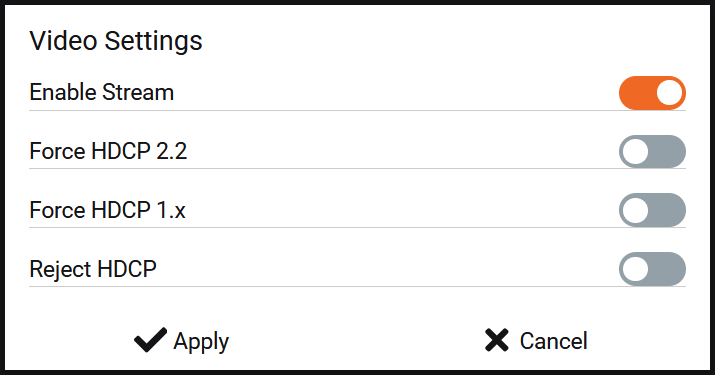
Just Add Power devices provide three configurable HDCP options in the Web UI. These settings control how the Encoder reports HDCP capability to the source device.
Important: Only one of these settings can be enabled at a time.
Key Behavior:
With the exception of Reject HDCP, these settings do not change the physical HDMI port behavior. Instead, they only affect how the HDCP state of the stream is presented.
Reject HDCP
If Enabled: The Encoder reports itself as not HDCP compliant.
- Forces the source device to either send non-HDCP content or fail the handshake.
If Disabled: The Encoder reports itself as HDCP compliant, and HDCP behavior follows the source device’s normal hardware capabilities.
Use Case:
Primarily used for troubleshooting or when working with non-HDCP-compliant equipment such as capture devices or legacy displays.
Important Behavior:
Many modern sources will refuse to output video if HDCP is rejected, resulting in a blank screen.
Force HDCP v1.4
If Enabled: The stream is presented as HDCP 1.4 where applicable.
- Native Non-HDCP content is uplifted to HDCP 1.4.
- Native HDCP 1.4 content is unchanged.
- Native HDCP 2.2 content is unchanged.
If Disabled: HDCP behavior follows the source device’s normal hardware capabilities.
Use Case:
Useful when ensuring compatibility with devices that expect HDCP 1.4 without impacting higher-level HDCP content.
Important Behavior:
Forcing HDCP 1.4 does not downgrade HDCP 2.2 content. It only uplifts lower or non-HDCP content.
Force HDCP v2.2
If Enabled: The stream is presented as HDCP 2.2 where applicable.
- Native Non-HDCP content is uplifted to HDCP 2.2.
- Native HDCP 1.4 content is uplifted to HDCP 2.2.
- Native HDCP 2.2 content is unchanged.
If Disabled: HDCP behavior follows the source device’s normal hardware capabilities.
Use Case:
Recommended when standardizing the system around HDCP 2.2 for modern 4K environments.
Important Behavior:
All devices in the signal path must support HDCP 2.2 when this setting is used.
Encoder vs Decoder Behavior
In a Just Add Power system, HDCP negotiation with the source occurs at the Encoder. The Decoder does not influence the source handshake.
Encoder: Controls how HDCP is presented to the source, and applies uplift behavior to the stream.
- Reject HDCP: Forces non-HDCP or handshake failure.
- Force 1.4: Uplifts non-HDCP content to 1.4 only.
- Force 2.2: Uplifts non-HDCP and 1.4 content to 2.2.
Decoder: Applies uplift behavior to the stream but does not affect source negotiation.
- Force 1.4: Uplifts non-HDCP content to 1.4 only.
- Force 2.2: Uplifts non-HDCP and 1.4 content to 2.2.
Instructions
Follow these instructions to adjust HDCP Settings.
-
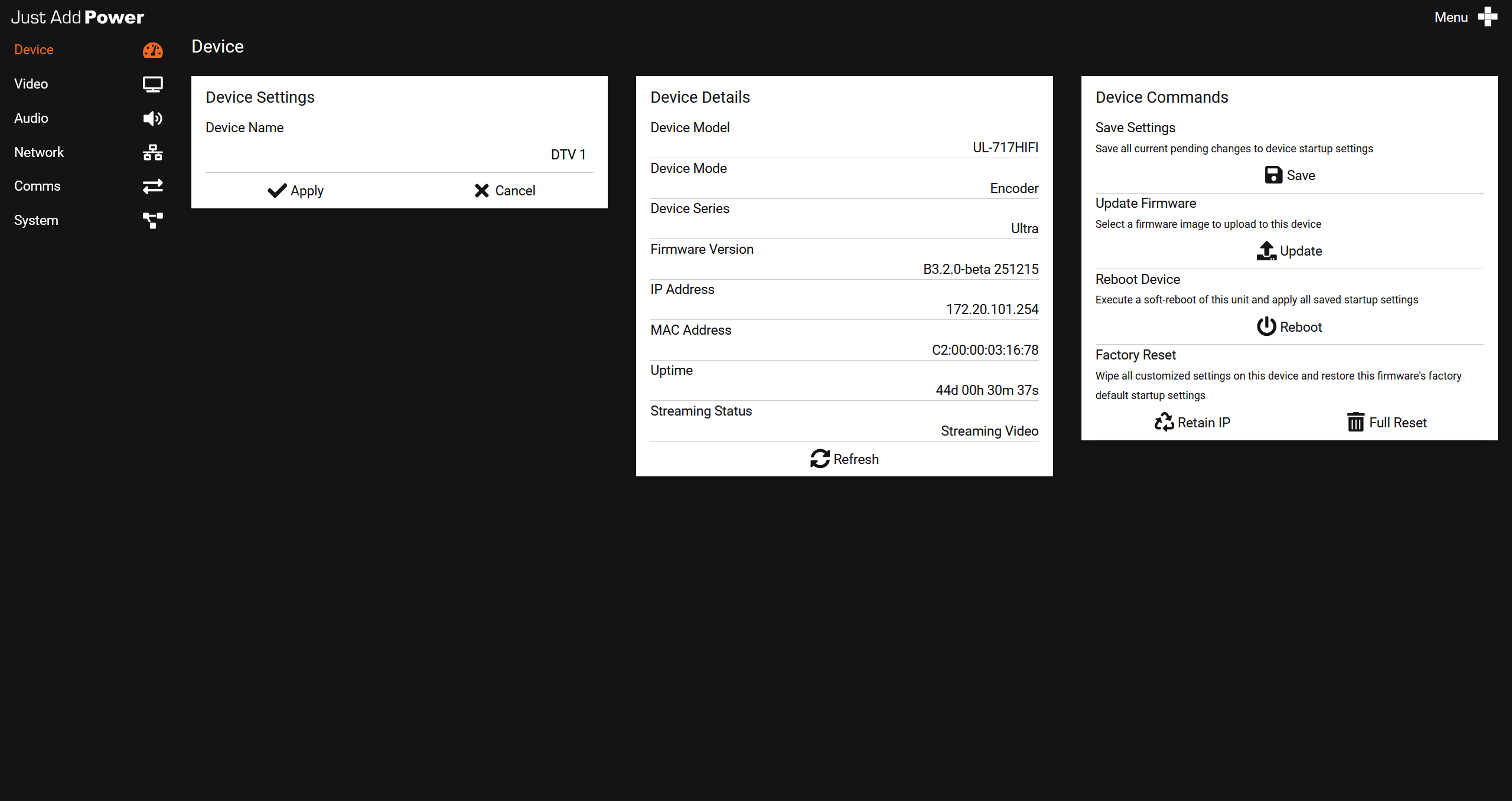
Access the webUI of your Just Add Power Encoder or Decoder.
-
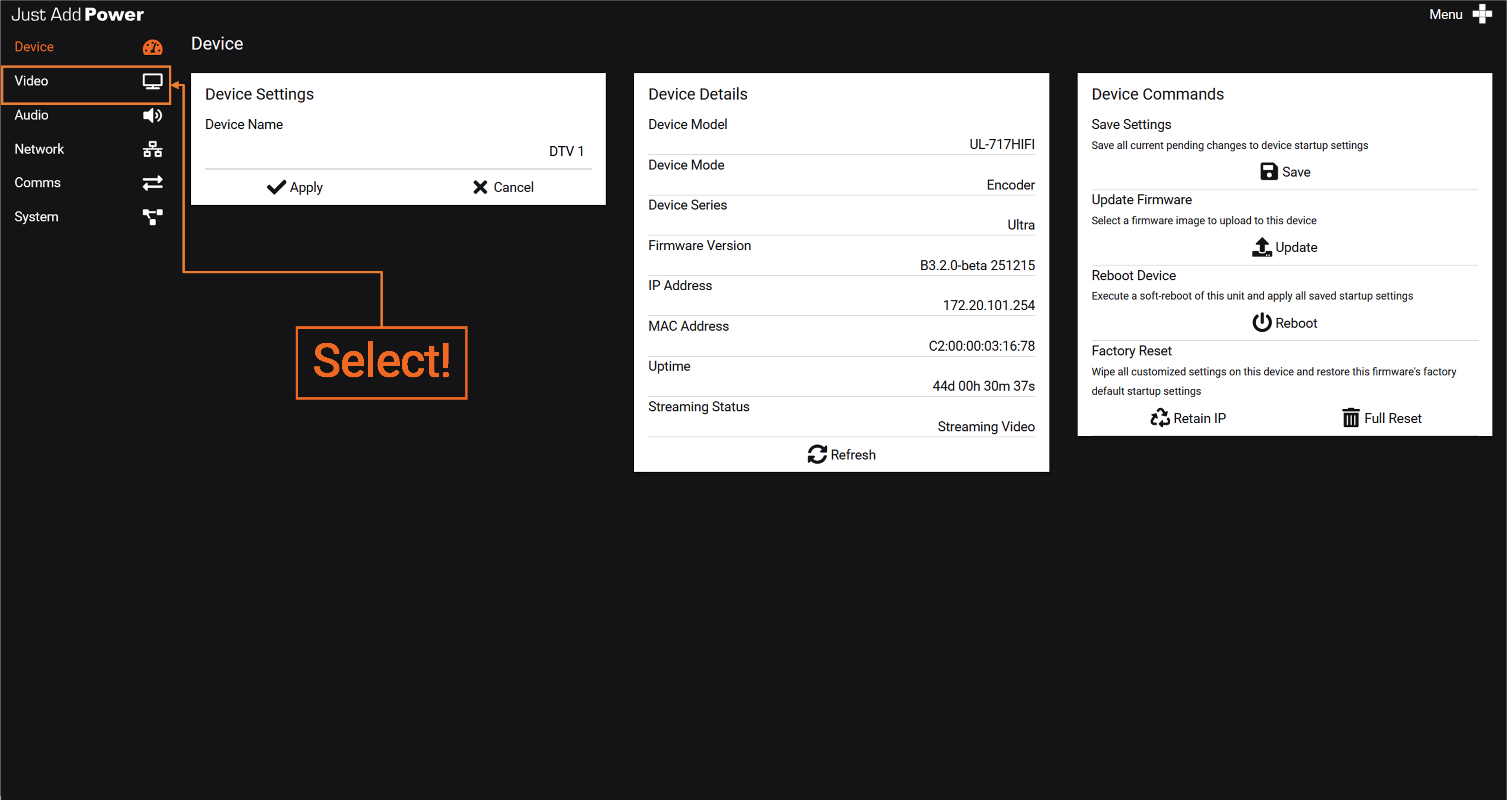
Select "Video" in the upper left-hand corner of the webUI.
-
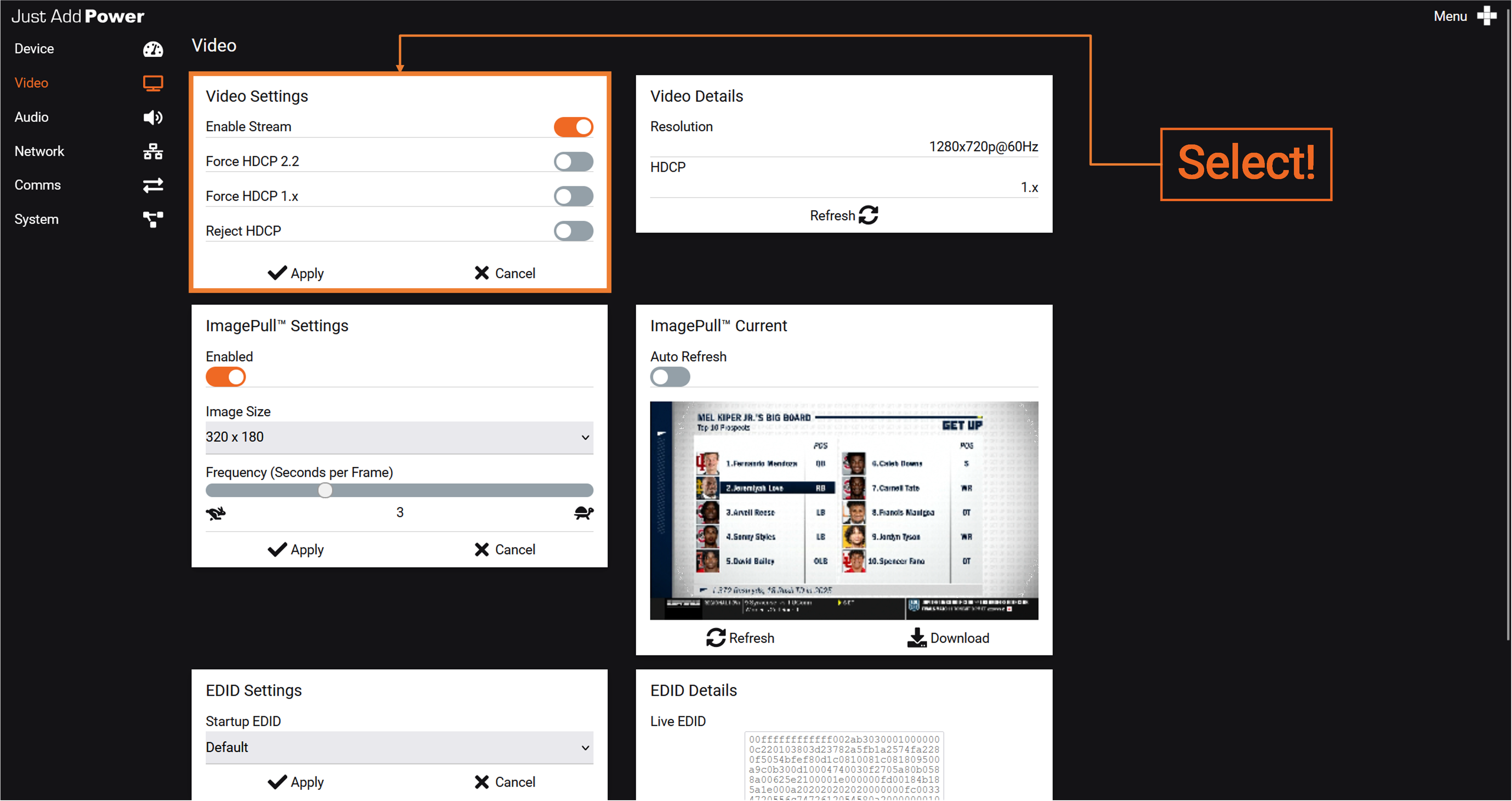
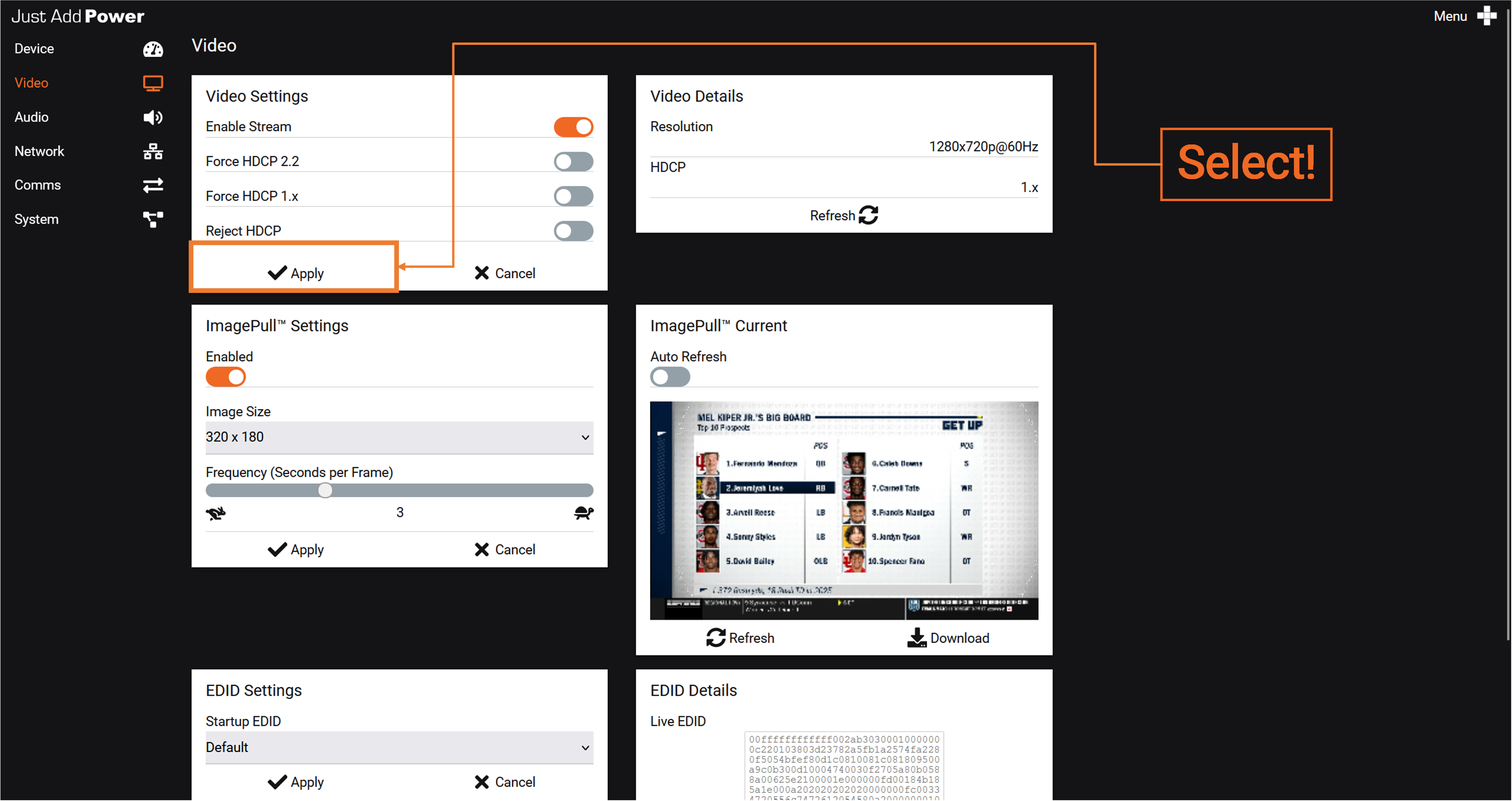
Select your desired HDCP Settings. Select only one option.
-
Select "Apply".
-
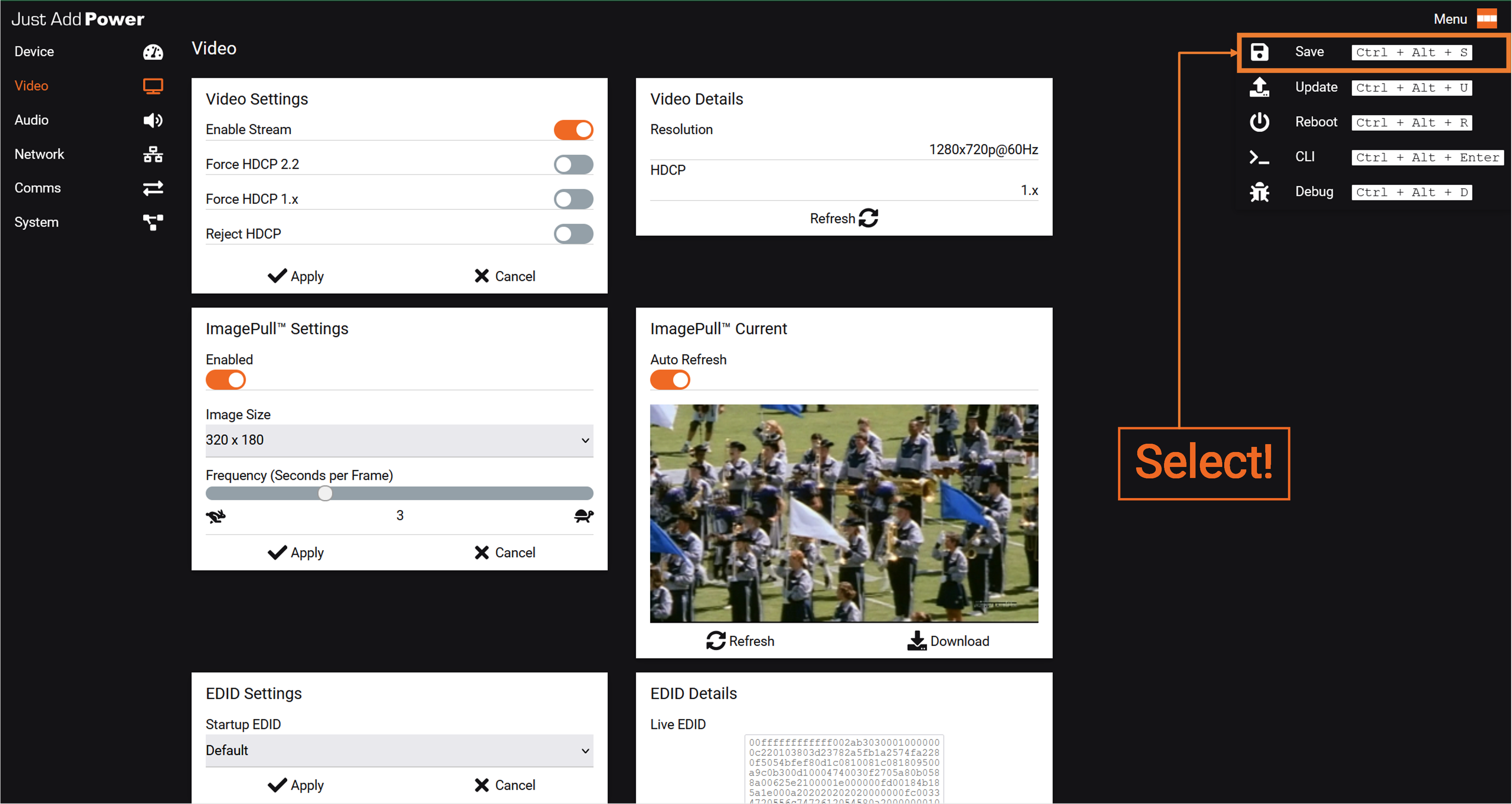
Select "Save".
-
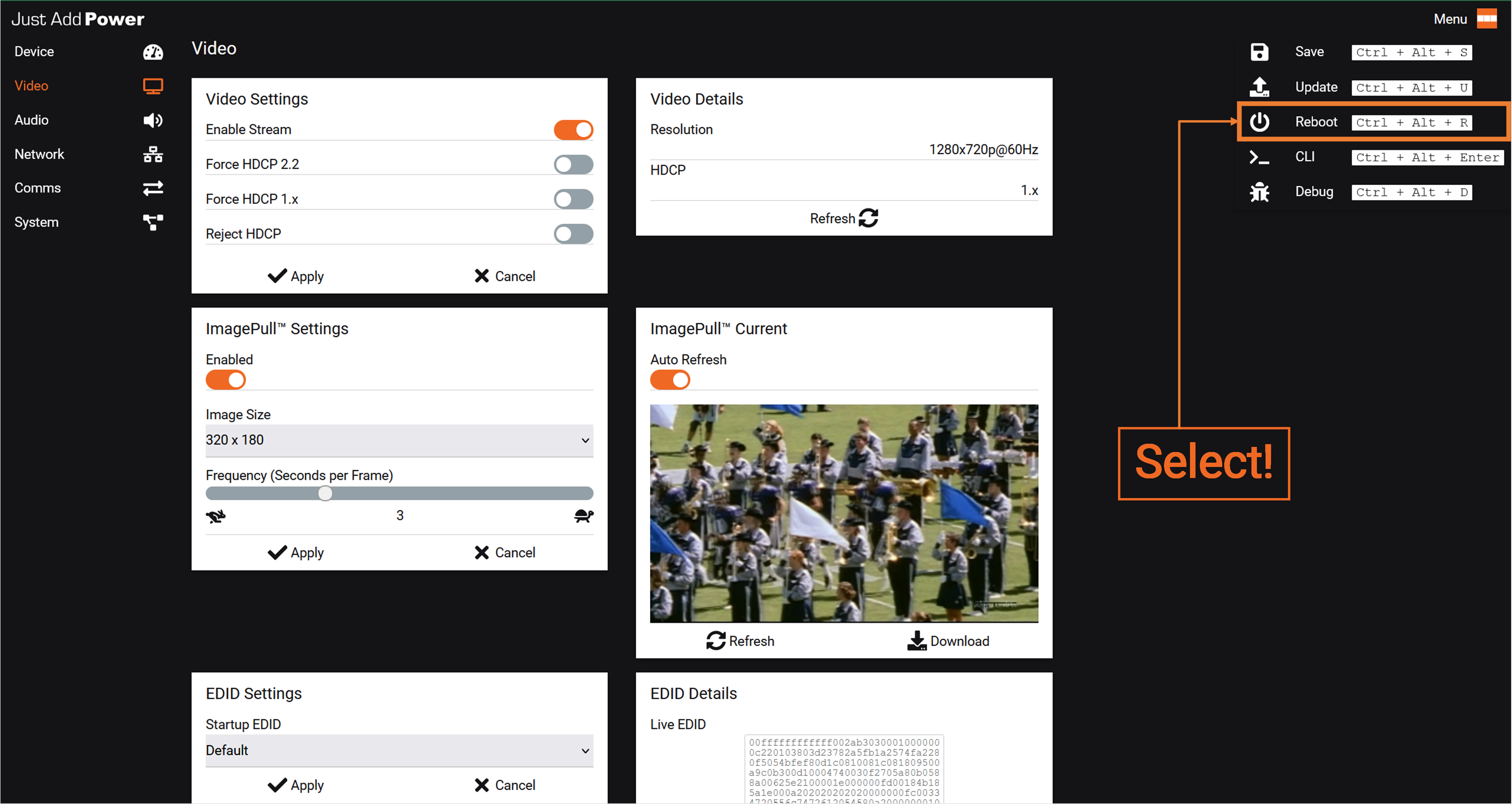
Select "Reboot".
Troubleshooting Tips
- If there is no video, verify HDCP compatibility across all devices.
- Check source device requirements—some sources will not output without HDCP enabled.
- Confirm firmware is up to date on all Encoders and Decoders.
Understanding and correctly configuring HDCP settings ensures reliable operation and prevents common signal issues in distributed AV systems.

