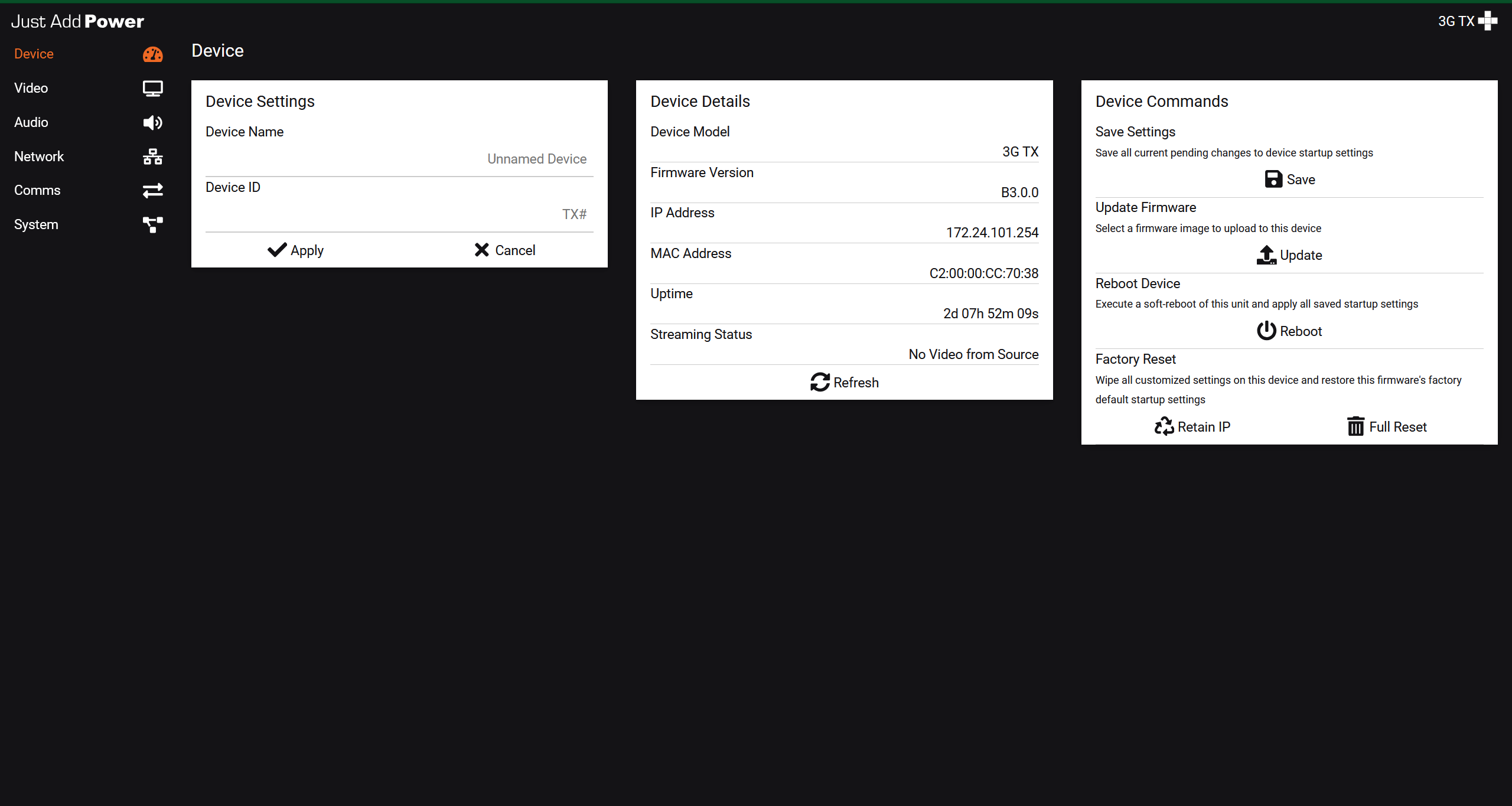
Overview
This article explains how to access devices in a system environment, whether through a direct local connection or across an established network.
It provides the foundational steps required to:
Connect to a device
Identify its IP address
Ensure network communication
Prepare for access using webUI, Telnet, or API methods
Methods of Access
Devices can be accessed using different methods depending on your workflow and level of control required.
webUI: Browser-based interface for configuration and monitoring
Telnet: Command-line access for advanced control and troubleshooting
HTTP API: Programmatic access for automation and system integration
All access methods require:
The device IP address
Network connectivity between your PC and the device
Connecting to a Device
Devices can be accessed in two primary ways:
Established System: Used when devices are already configured and part of a network
Local (Direct) Connection: Used when working with factory default devices or isolated setups
Select the method that matches your environment. Most deployments use Established System access.
Accessing Devices on an Established System
When working with an established system, devices are already configured and operating on a dedicated device network that is separate from the control or local network.
Because of this, you should not connect directly to encoder or decoder ports on the switch. Instead, access is performed from the control network using a static route.
Use Advanced Matrix Programmer (AMP) or JADConfig to gather system information
Check the project Report file for device IP addresses
Use the Takeover Form to discover device details of an established system
Your PC should be connected to the same network as the control system or switch management interface.
To access a device on an established system:
-
Disable the Wi-Fi adapter on the PC.

-
Connect the PC to the local network using DHCP.

-
Configure a static route on the router or PC.

-
Once the static route is configured, you can access any Encoder or Decoder by using its IP address configured for the Established system with one of the methods mentioned above.

Connected to a Local Data Network or PC
WARNING: If the device is an Encoder, disconnect the HDMI cable before connecting the unit to your network. Leaving HDMI connected can flood the network and disrupt other devices.
Local Connection and Discovery
This method is used when working with factory default devices or when network access is not yet established.
For Windows users, download Bonjour Browser.
For macOS users, Bonjour is built into Safari under Settings > Advanced > Bonjour.
-
Connect the device to a PoE switch or directly to a PC using a PoE injector or local power supply.
-
Connect your PC via Ethernet.
-
Disable the Wi-Fi adapter on the PC.
-
Open Bonjour Browser.
Bonjour Device Identification
Select Web Server (HTTP)
Use the Name and IP Address columns to identify devices
Devices will appear using the following naming conventions:
| Broadcast ID | Device Model |
|---|---|
| ast3-gateway | Omega Series Encoders (A Firmware) |
| Ultra Series Encoders (A Firmware) | |
| ast3-client | Omega Series Decoders (A Firmware) |
| Ultra Series Decoders (A Firmware) | |
| JustAddPower-TXABCDEF | Omega Series Encoders (B Firmware) |
| Ultra Series Encoders (B Firmware) | |
| MaxColor Series Encoders | |
| JustAddPower-RXABCDEF | Omega Series Decoders (B Firmware) |
| Ultra Series Decoders (B Firmware) | |
| MaxColor Series Decoders |