



How to Access the webUI (Omega, Ultra, and MaxColor Series)

May 01, 2026
Overview
This article explains how to access the webUI of a device. The webUI allows you to view device status, configure settings, and perform firmware updates.
Before proceeding, ensure you have network access to the device and know its IP address.
If you need assistance connecting to a device or identifying its IP address, refer to: How to Access a Device (Omega, Ultra, and MaxColor Series).
Accessing the webUI
- Open a web browser on your PC.
- Enter the device IP address into the address bar.
- Press Enter.
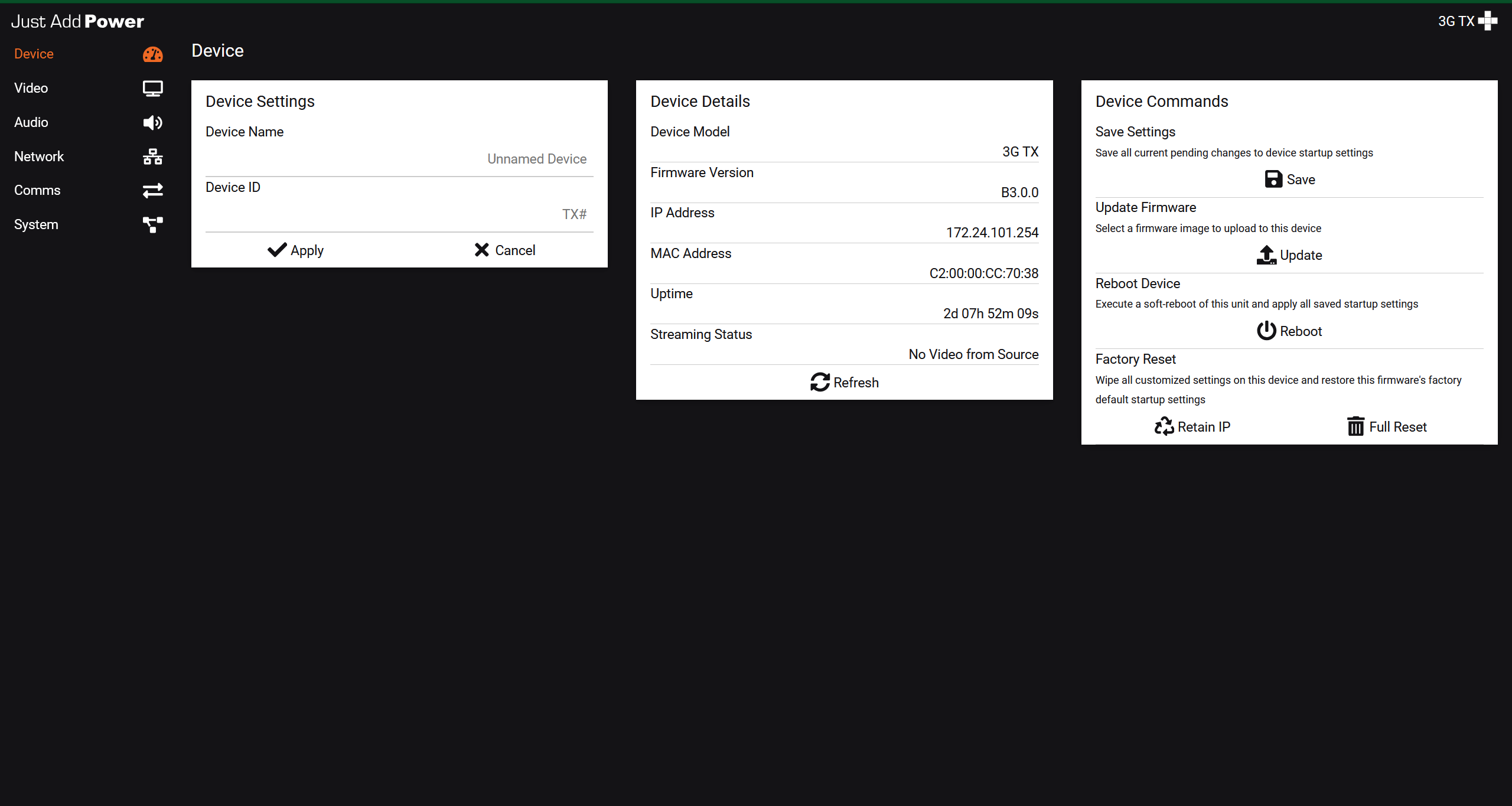
The webUI will load and display the device interface.
Troubleshooting
- Page does not load: Verify the IP address and confirm network connectivity.
- Device not reachable: Ensure your PC is on the same network or that a static route is configured.
- Unknown IP address: Use Bonjour Browser, AMP, or your system configuration tools to identify the device.

