Applying 720p Custom EDIDs on Just Add Power Encoders

Dec 01, 2025
Overview
Just Add Power EDIDs normally request a minimum output of 1080p or 4K. If your source device does not offer a 720p option in its own menu, you can force 720p by applying a 720p custom EDID to the connected Encoder.
Warning: Applying a custom EDID immediately forces the source to re-handshake. The Encoder video preview will drop for several seconds while the source switches to 720p.
Apply 720p EDID to 2G Series Encoder
- Telnet to the IP address of the 2G Series Encoder that should output 720p.
- In the command line, run one of the following commands:
- 720p Stereo EDID
echo 00ffffffffffff002ab3003000000000141e010380a05a782aee91a3544c99260f505421080081c08100818090409500b30001000101011d007251d01e206e28550040846300001e000000100000000000000000000000000000000000fd00183c1e5a1e000a202020202020000000fc00484449502d373230502d322e300197020328f14504131e030123090404830100006a030c001000b83c210000e2000fe305c000e3060501011d007251d01e206e28550040846300001e00000000000000000000000000000000000000000000000000000000000000000000000000000000000000000000000000000000000000000000000000000000000067 | sed 's/../0x\0 /g' | sed 's/ /,/g' > /sys/devices/platform/videoip/eeprom_content - 720p DD5.1 EDID
echo 00ffffffffffff002ab3003000000000141e010380a05a782aee91a3544c99260f505421080081c08100818090409500b30001000101011d007251d01e206e28550040846300001e000000100000000000000000000000000000000000fd00183c1e5a1e000a202020202020000000fc00484449502d373230502d415650014002032bf14584131e030126090404150750830f00006a030c001000b83c210000e2000fe305c000e3060501011d007251d01e206e28550040846300001e00000000000000000000000000000000000000000000000000000000000000000000000000000000000000000000000000000000000000000000000000000000000067 | sed 's/../0x\0 /g' | sed 's/ /,/g' > /sys/devices/platform/videoip/eeprom_content - The Encoder video will drop immediately as the source re-negotiates to 720p.
- Done.
Tip: If the source does not switch to 720p, reboot the source device to force a new HDMI handshake.
Apply 720p EDID to Omega/Ultra/MaxColor Series Encoder
Note: Omega & Ultra Series Encoders running B3.X.X firmware or newer already include these 720p EDIDs in the webUI.
- Open the webUI of the Omega/Ultra Series Encoder connected to the source.
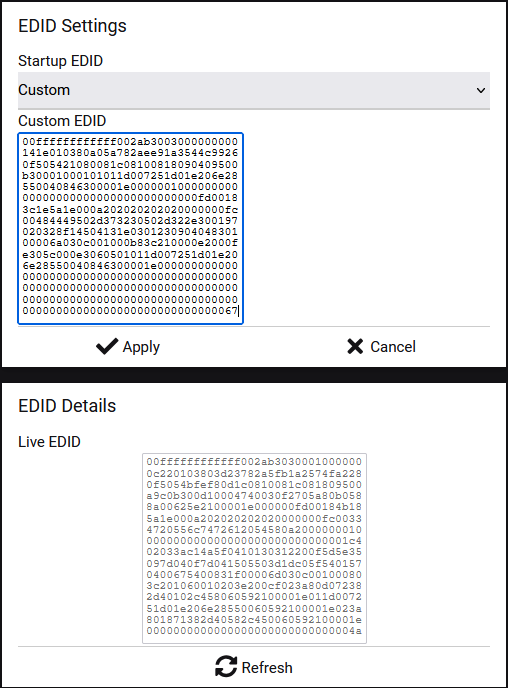
- Go to the Video tab and find the EDID Settings section.
- Set Startup EDID = Custom. A text box will appear.
- Copy and paste one of the following EDIDs into the Custom field:
- 720p Stereo EDID
00ffffffffffff002ab3003000000000141e010380a05a782aee91a3544c99260f505421080081c08100818090409500b30001000101011d007251d01e206e28550040846300001e000000100000000000000000000000000000000000fd00183c1e5a1e000a202020202020000000fc00484449502d373230502d322e300197020328f14504131e030123090404830100006a030c001000b83c210000e2000fe305c000e3060501011d007251d01e206e28550040846300001e00000000000000000000000000000000000000000000000000000000000000000000000000000000000000000000000000000000000000000000000000000000000067 - 720p DD5.1 EDID
00ffffffffffff002ab3003000000000141e010380a05a782aee91a3544c99260f505421080081c08100818090409500b30001000101011d007251d01e206e28550040846300001e000000100000000000000000000000000000000000fd00183c1e5a1e000a202020202020000000fc00484449502d373230502d415650014002032bf14584131e030126090404150750830f00006a030c001000b83c210000e2000fe305c000e3060501011d007251d01e206e28550040846300001e00000000000000000000000000000000000000000000000000000000000000000000000000000000000000000000000000000000000000000000000000000000000067 - Click Apply. The Encoder video will drop briefly as the source switches to 720p.
- Click Refresh under EDID Details to confirm the EDID was applied.