


Overview
Use this article to set up and control a Standard Video Wall with Just Add Power Omega Series, Ultra Series, or MaxColor Series devices.
A Standard Video Wall is a rectangular grid of displays of the same size and orientation, aligned edge-to-edge, with one Decoder per display. Each Decoder shows its assigned portion of the source video. A source can appear across the wall and on individual displays at the same time.
See examples of dynamic layouts in the 4×4 Video Wall Layout Demonstration.

The layout can change dynamically to show one source across the entire wall, smaller groups of displays, or individual screens.

For other display arrangements, see the separate procedures for Mosaic Video Walls and Artistic Video Walls. Their hardware requirements and setup procedures differ from a Standard Video Wall.
Requirements
- Multiple displays of the same size and orientation, mounted edge-to-edge in a rectangular grid.
- One compatible Decoder per display.
- A configured Just Add Power system with working source selection.
- A PC with network access to the webUI of a Decoder in the wall.
- A source outputting a progressive video format supported by the installed equipment. Interlaced formats such as 1080i are not supported for video wall processing.
MaxColor Series portrait walls: A wall with displays mounted in portrait orientation must be at least three displays wide.
The instructions and commands in this article are maintained for current firmware. Use the appropriate firmware download for Omega Series and Ultra Series or MaxColor Series. Review compatibility information before updating an established system.
For devices using older firmware, see the separate A6.x.x Standard Video Wall instructions or B1.x.x Video Wall instructions. These procedures do not cover 2G Legacy Mode.
If the PC cannot reach the Decoder, follow Set a Static Route on the Router or Add a Static Route to a Windows Computer, as appropriate for the installation.
Content Scaling
A Standard Video Wall scales the source video to fill the wall. If the wall’s overall aspect ratio differs from the source content, the image can appear stretched.
Common video formats such as 1280 × 720, 1920 × 1080, and 3840 × 2160 have a 16:9 aspect ratio. This means the image is approximately 1.778 times wider than it is tall.
- A wall proportionally wider than the source content makes the image appear wider.
- A wall proportionally taller than the source content makes the image appear narrower.
- Matching the wall’s aspect ratio to the content preserves the image’s proportions.
For identical 16:9 displays mounted in landscape orientation, a wall with the same number of rows and columns preserves the source’s 16:9 proportions.


Bezel and Gap Compensation
Display bezels create gaps between adjacent viewable areas. Choose whether to compensate for those gaps based on the content and the intended appearance.
- Without compensation: The complete source image remains visible across the displays. Lines and moving objects may appear discontinuous where they cross a bezel.
- With compensation: The bezels act like window frames, with part of the image hidden behind them. This improves continuity between displays but hides some content.
Compensation can improve moving video. For spreadsheets, presentations, or other content where every part of the image must remain visible, leaving compensation disabled may be preferable.
To disable bezel compensation, leave all four display measurements at 1. To enable it, enter accurate outside and viewable dimensions during setup.


Setup Video
This video demonstrates Standard Video Wall setup for Ultra Series and MaxColor Series systems. Use the written procedure below for the shared setup workflow and the MaxColor Series portrait requirement.
Setup Instructions
Configure the wall from the webUI of one Decoder. The procedure applies to Omega Series, Ultra Series, and MaxColor Series. Screenshots primarily show the MaxColor Series interface; appearance may vary with series and firmware.
1. Prepare the Wall
- Confirm that the switch and all Just Add Power devices are configured and that each wall display can show a source.
- Set all displays in the wall to the same source.
- Disable display zoom, overscan, and other picture-sizing adjustments. Each display must show the complete image received from its Decoder.
- If using bezel compensation, measure the four dimensions of one display listed below. Use the same unit for every measurement and round to three decimal places.
| Measurement | What to Measure |
|---|---|
| Outside Width | Frame-to-frame length of the display’s longer edge. |
| Outside Height | Frame-to-frame length of the display’s shorter edge. |
| Viewable Width | Length of the active image area along the longer edge. |
| Viewable Height | Length of the active image area along the shorter edge. |
Record these measurements using the display’s normal landscape orientation, even when it will be mounted in portrait orientation. Set the installed orientation separately in the webUI.
2. Open the Wall Settings
- Open the webUI of one Decoder in the video wall.
- Select Wall from the left menu.

3. Enter the Display Dimensions
In Dimensions, enter the Outside Width, Outside Height, Viewable Width, and Viewable Height measured earlier. Use the same unit for all values and round to three decimal places.
To disable bezel compensation, leave all four values at 1.

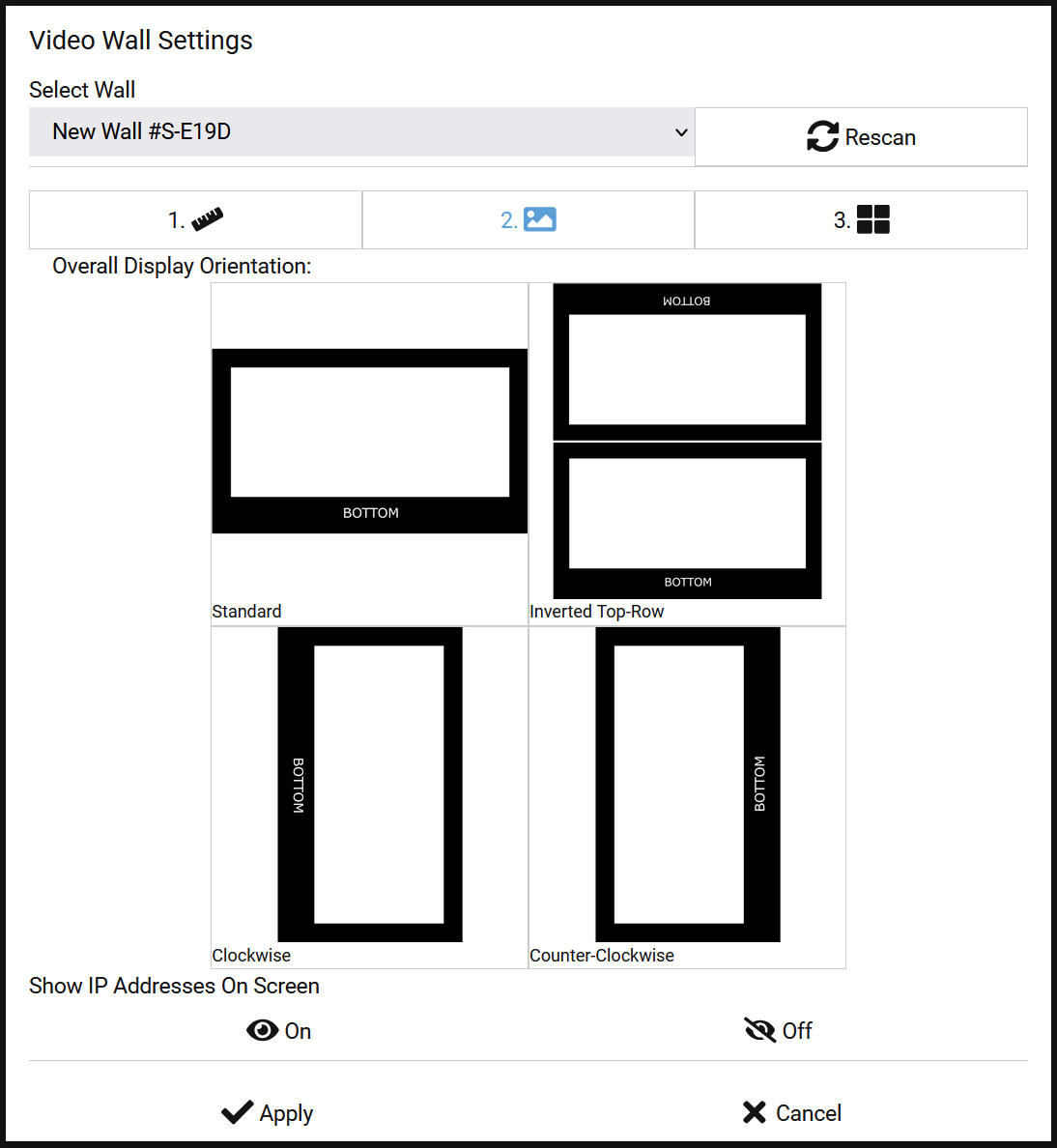
4. Set the Display Orientation
In Orientation, set Overall Display Orientation to match the physical mounting of the displays:
- Standard
- Inverted Top-Row
- Clockwise
- Counter-Clockwise
For MaxColor Series portrait walls, confirm that the layout meets the minimum width specified in Requirements.
5. Set the Layout and Assign Decoders
- In Layout, enter the number of Rows and Columns. The diagram updates to match.
- Optionally, enter a Name to identify the wall.
The following example shows an unassigned 2×2 layout.
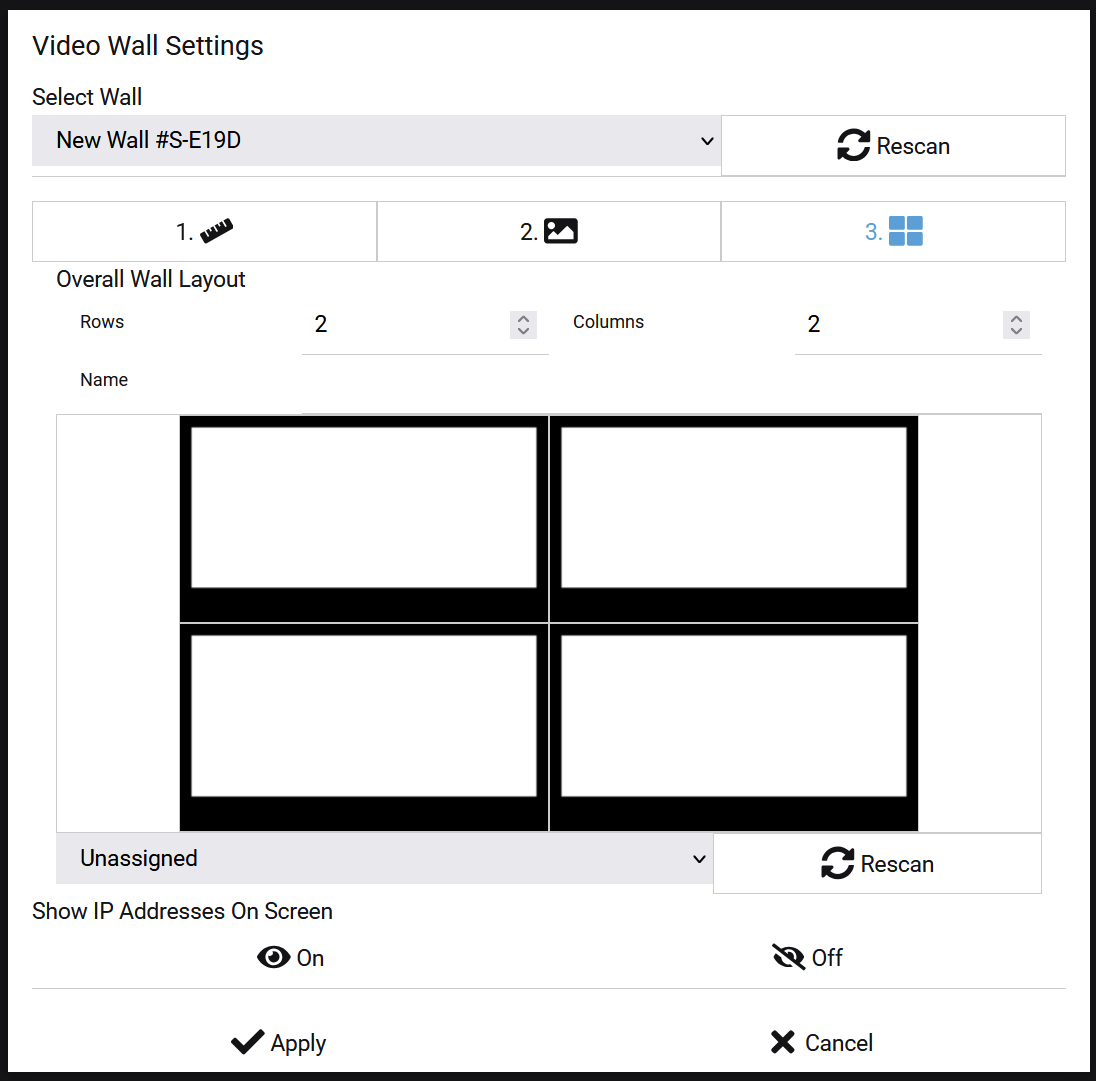
- Select the top-left display in the diagram. The selected tile is highlighted.
- From the dropdown below the diagram, select the IP address of the Decoder connected to that display.
- Click Eyeball On to display Decoder IP addresses on the screens.
- If an expected Decoder IP address is missing, click Rescan and check the list again.

- Assigned tiles turn gray. Select each remaining tile and assign the Decoder connected to that display.
- Confirm that every tile has an assigned Decoder.

- Click Eyeball Off to remove the IP address overlays.
- Click Apply. The displays update one at a time to show their assigned portions of the image.
6. Verify the Wall
- Show a test grid or image with recognizable straight lines across the wall.
- Confirm that each display shows the correct position and orientation.
- Check alignment between adjacent displays and confirm that any hidden content matches the intended bezel compensation.
- Play moving video and check transitions between displays.
- Test each intended source.
If the result is incorrect, follow Video Wall Image Is Zoomed In, Cropped, or Misaligned.
Programming
To change a video wall layout during operation, execute commands directly on the Decoder connected to each affected display. Source selection and video wall positioning are separate functions: selecting a source determines what video a Decoder receives, while video wall commands determine which portion it displays.
For a whole-wall layout change, execute the appropriate command on every affected Decoder as close together as the control system supports. Each Decoder needs its own row and column position; executing an identical position command on every Decoder makes them show the same portion of the image.
- Telnet: Connect to each Decoder’s IP address on port 23 and execute the commands below.
- justAPI: Use the justAPI reference for API-based control.
Telnet Command Format
All commands and option values are case-sensitive. Replace the variables in each example with the required values.
vw [options]| Option | Function |
|---|---|
-l |
Set the wall size and this Decoder’s row and column position. |
-r |
Set clockwise video rotation in 90-degree increments. |
-m |
Enable or disable horizontal mirroring. |
-b |
Set outside and viewable display dimensions for bezel compensation. |
Set Size and Position
Set the total rows and columns in the layout and the position of this Decoder. Row and column positions start at 1, with position 1,1 at the top-left.
If rotation is required, execute the rotation command before setting size and position. Positioning takes the rotation value into account.
vw -l $TR,$TC,$RP,$CP- $TR: Total rows. Integer 1 or greater.
- $TC: Total columns. Integer 1 or greater.
- $RP: This Decoder’s row position. Integer from 1 through $TR.
- $CP: This Decoder’s column position. Integer from 1 through $TC.
For a 2×2 wall, execute the corresponding command on each Decoder:
| Display Position | Command |
|---|---|
| Top-left | vw -l 2,2,1,1 |
| Top-right | vw -l 2,2,1,2 |
| Bottom-left | vw -l 2,2,2,1 |
| Bottom-right | vw -l 2,2,2,2 |
For a four-row, five-column wall, set a Decoder to row 2, column 3:
vw -l 4,5,2,3Return a Decoder to a single-screen layout:
vw -l 1,1,1,1This changes the layout size and position. Adjust rotation or mirroring separately if those settings also need to change.
Set Rotation
Set clockwise video rotation. Valid values for $ROT are 0, 90, 180, and 270.
vw -r $ROTRotate the video 90 degrees clockwise:
vw -r 90Rotate the video 180 degrees:
vw -r 180Return to zero rotation:
vw -r 0Horizontal Mirror
Enable or disable horizontal mirroring. Use y to enable it or n to disable it.
vw -m $MEnable horizontal mirroring:
vw -m yDisable horizontal mirroring:
vw -m nSet Bezel Measurements
Set the outside and viewable dimensions used for bezel compensation.
vw -b ow:$OW,oh:$OH,vw:$VW,vh:$VH- $OW: Outside Width.
- $OH: Outside Height.
- $VW: Viewable Width.
- $VH: Viewable Height.
Each value must be an integer less than 65000. Use the same unit and scale for all four measurements. If your measurements contain decimals, multiply all four by the same factor to express them as integers.
For Outside Width 4413, Outside Height 2550, Viewable Width 4300, and Viewable Height 2425:
vw -b ow:4413,oh:2550,vw:4300,vh:2425Troubleshooting
For enlarged images, missing or duplicated content, incorrect proportions, or misalignment between displays, follow Video Wall Image Is Zoomed In, Cropped, or Misaligned. The procedure covers display picture sizing, source video format, display measurements, and Decoder positioning.

