


Overview
Just Add Power devices have a green Power LED and Data LED that can help narrow down startup, network, and video problems. On rackmount devices, use the LEDs on the port side for these checks.
This article covers common LED behavior on Omega Series, Ultra Series, and MaxColor Series Encoders and Decoders. A separate section covers a specific behavior on 2G+ devices operating in 2G Legacy Mode.
Default LED behavior: The interpretations in this article assume the LEDs have not been configured to behave differently. Omega Series and Ultra Series devices running justOS can have their LEDs forced on, off, or blinking, and can use persistent settings that change when the LEDs light. If the observed pattern conflicts with the device’s operation, check its LED settings before using the lights for diagnosis. See Power & Data LED Management.
LEDs are a starting point: They do not, by themselves, confirm that a Decoder has an active HDMI connection to a display, that an Encoder is being watched by a Decoder, or that the device is reachable through its management IP address. If a Decoder displays a Diagnostic Screen, read its exact message in the bottom-left corner and see Troubleshoot Decoder Diagnostic Screen Messages.
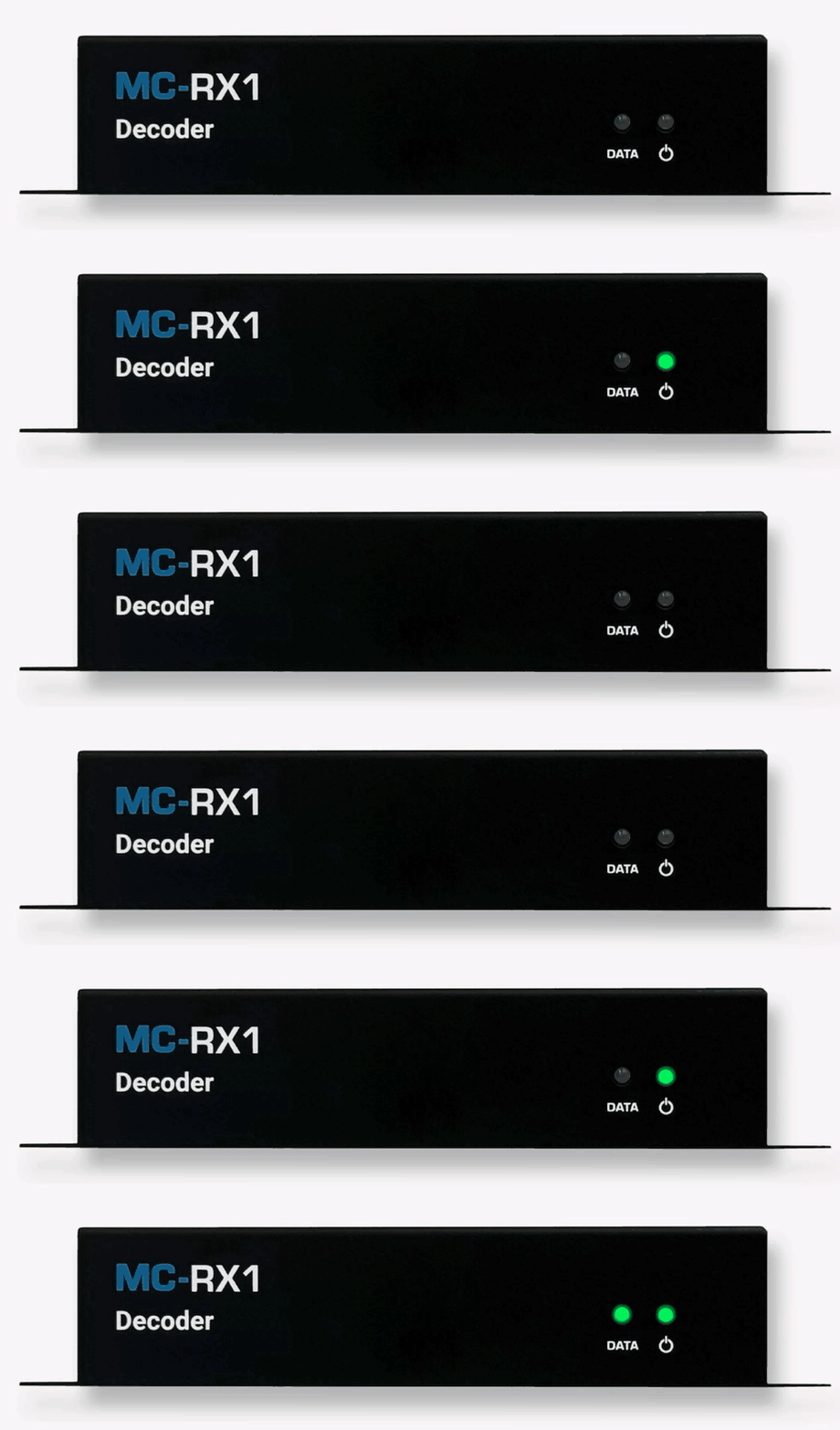
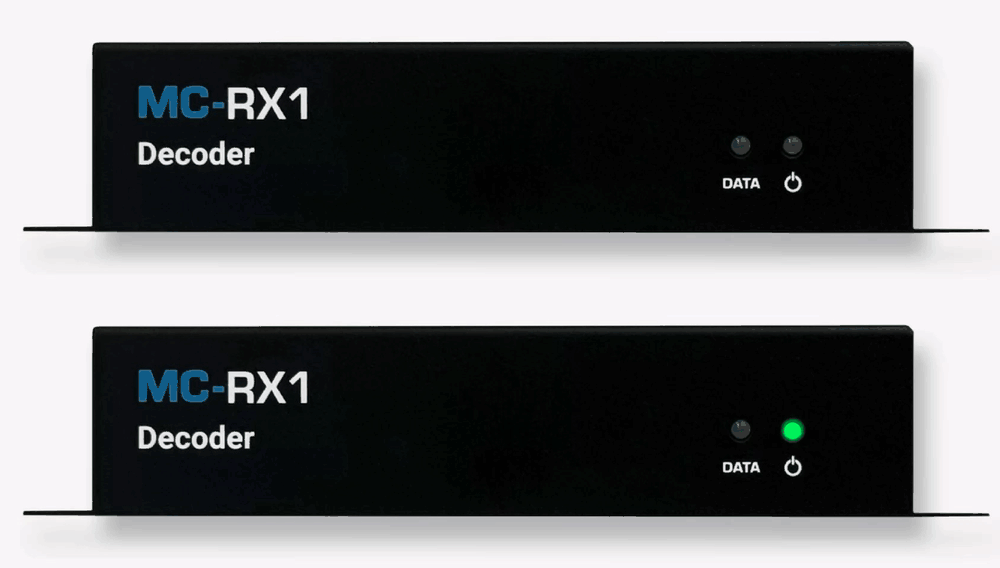
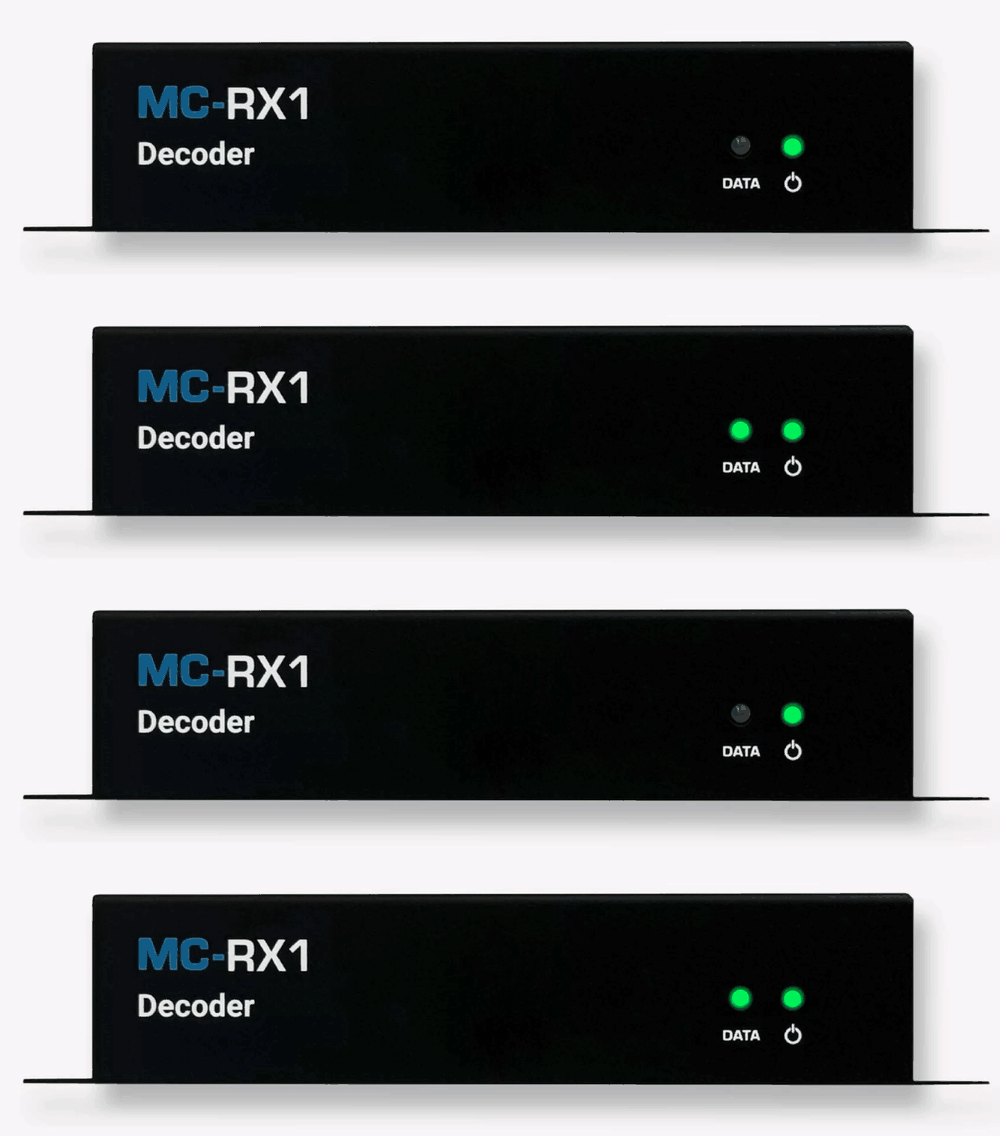
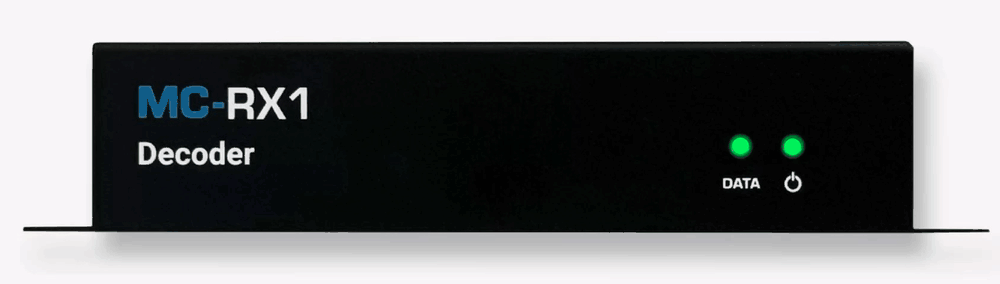
Illustration: The heartbeat sequence is shortened. During a normal startup, it repeats about 10 times before the Power LED becomes solid. The Data LED becomes solid only when compatible video is available at the device; it may continue blinking after a successful startup when video is unavailable. The MC-RX1 Decoder shown illustrates the LED patterns described for Encoders and Decoders.
Quick Reference
| Power LED | Data LED | What to check |
|---|---|---|
| Off | Off | Check the power supply or PoE source and whether LED behavior was intentionally changed. Dark LEDs alone do not establish that the device has no power. |
| Heartbeat blink during startup | May be off | Normal while the device boots. The Power LED should become solid. |
| Heartbeat blink that never stops | Any state | The device is not completing startup. Check its power source and whether a firmware update was interrupted. |
| Solid immediately after power is applied, without a heartbeat blink | Never lights | The device may not be starting correctly. See the startup troubleshooting steps below. |
| Solid after a normal heartbeat blink | Off for approximately 5–10 seconds | Normal briefly while network services initialize. The Data LED should then show activity. |
| Solid after a normal heartbeat blink | Off and never shows activity | No active network link after initialization. Check the cable run and terminations, intermediate connections, switch port, and device network port. |
| Solid | Blinking | The device has started and has an active network link, but does not have compatible video at that point. Check the Encoder and Decoder interpretations below. |
| Solid | Solid | The Encoder detects source video, or the Decoder receives compatible video from an Encoder. If the display still has no picture, check the rest of the signal path. |
Link speed: A blinking or solid Data LED does not establish the speed negotiated by the network port. If video or audio is unstable, use AMP Gather Details and the switch’s port status to check the affected Encoder or Decoder link. See Encoder or Decoder Connected at 10/100 Mbps.
Power and Data LEDs Are Both Off
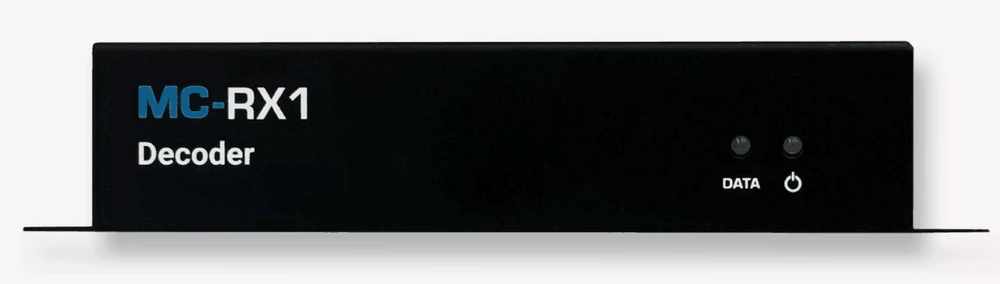
Both LEDs being dark may indicate that the device is not receiving power. It may also result from LED behavior that was intentionally changed. Check for signs that the device is operating before interpreting the dark LEDs as a power failure.
- Check the device’s power supply or PoE source, including the connected switch port and network cable. Confirm that the source meets the device’s power requirements.
- If the device passes video or is otherwise reachable, check whether its LED behavior was changed. For Omega Series and Ultra Series devices running justOS, see Power & Data LED Management. For a 2G Series device running firmware A6.5.5 or later, see How to Control the Power & Data LED of a Device.
- If the device shows no other signs of operation, test it with a known-working power supply that meets its requirements or with another suitable PoE port and known-working cable. Contact Just Add Power Technical Support if it still does not respond.
Power LED Continues Heartbeat Blinking
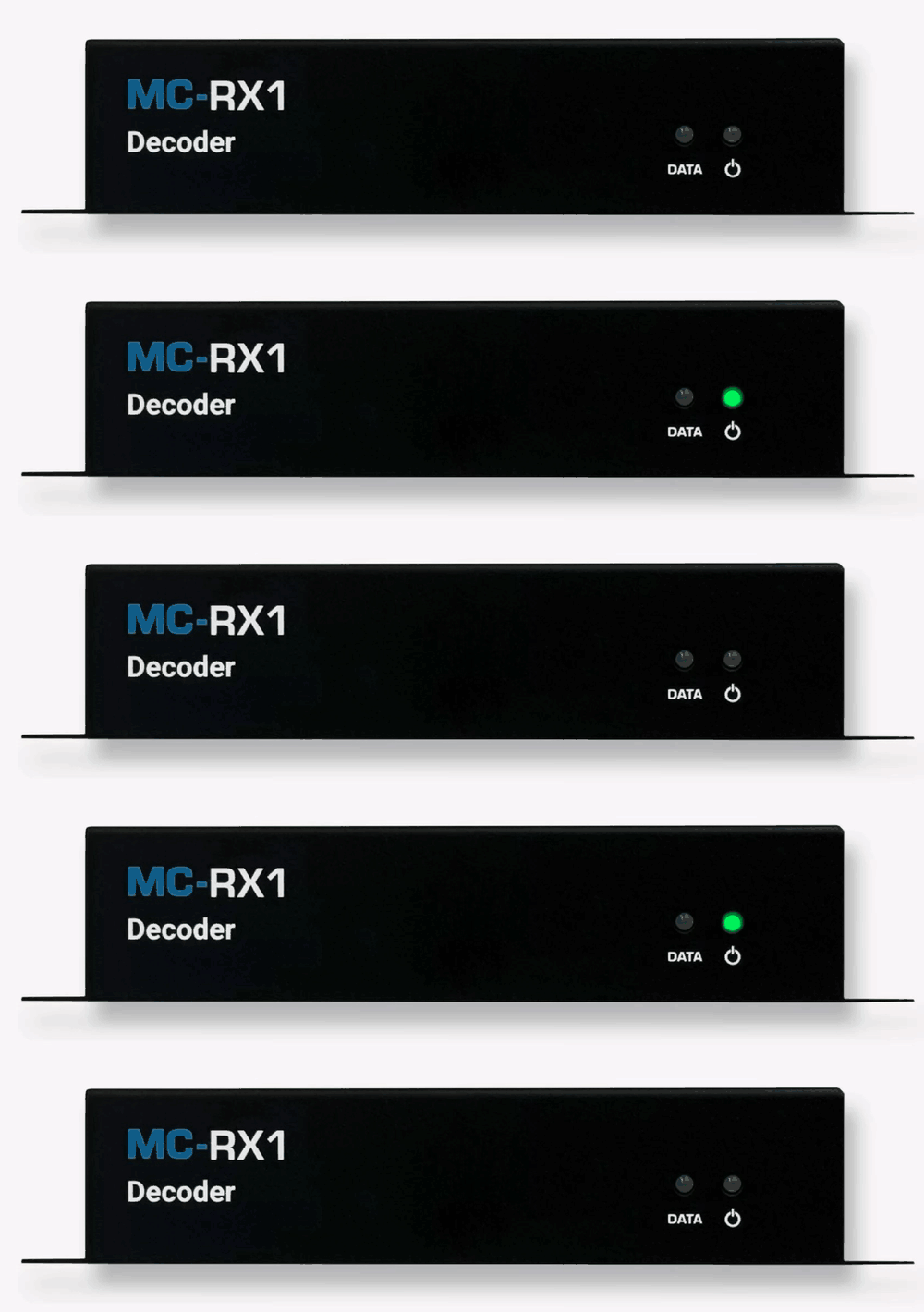
During a normal startup, the Power LED blinks twice quickly, pauses, and repeats this heartbeat pattern about 10 times before turning solid. If the pattern continues and the Power LED never becomes solid, the device is not completing startup.
- If the device uses a power supply, test it with a known-working supply that meets the device’s requirements. If the device uses PoE, test with a known-working network cable and another suitable PoE switch port.
- Confirm that no AMP operation or firmware update is running. Then power-cycle the device and watch whether the Power LED becomes solid after the heartbeat pattern.
- If the behavior began during or after an interrupted firmware update, follow DeBrick: Recover a Just Add Power Device.
If the device still does not complete startup, contact Just Add Power Technical Support.
Power LED Is Solid and Data LED Is Off
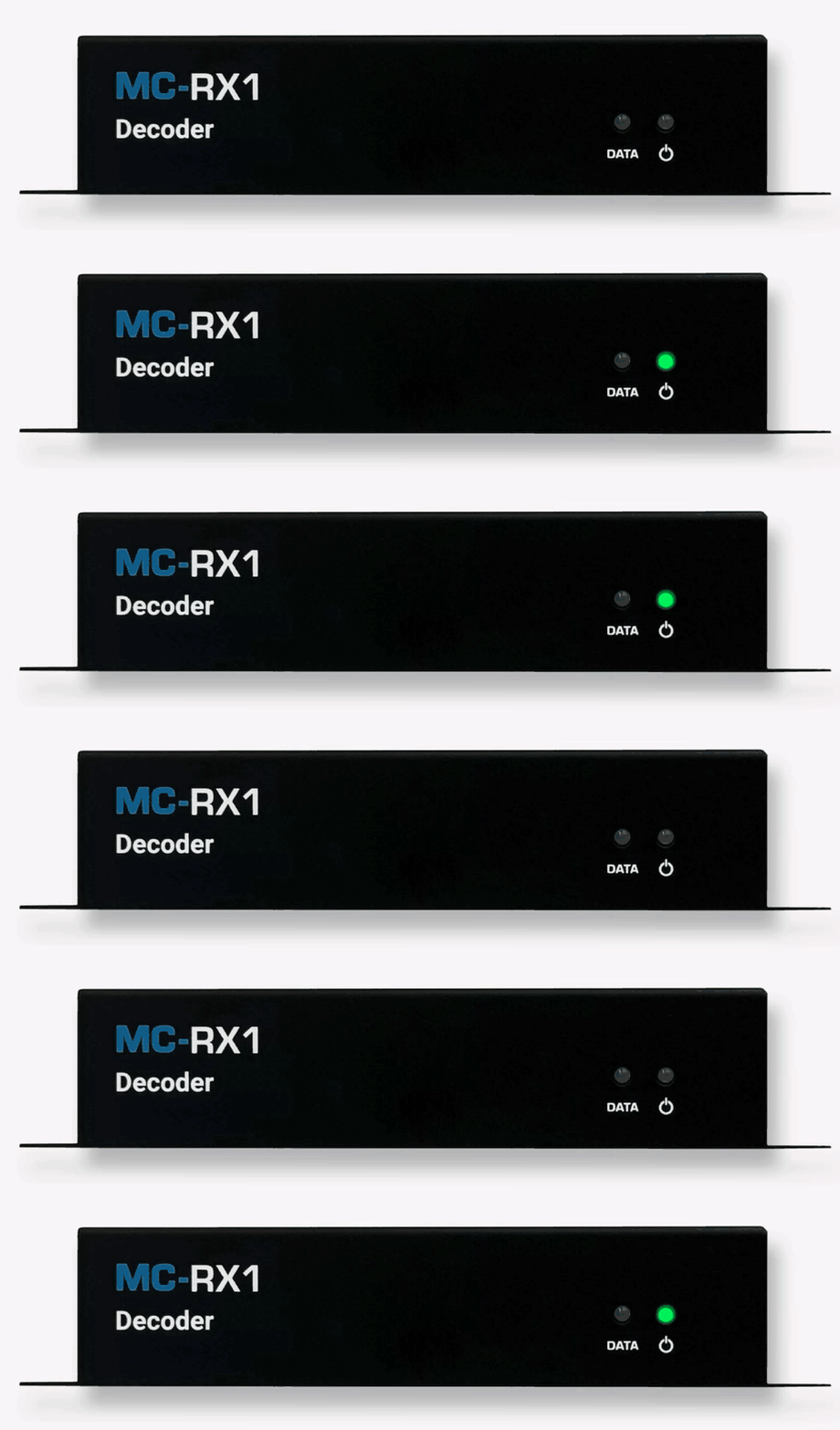
First, watch the startup sequence. The Data LED can remain off for approximately 5–10 seconds after the Power LED becomes solid while network services initialize. That brief interval is normal. The troubleshooting path depends on whether the Power LED completed its normal heartbeat blink.
The Power LED completed its heartbeat blink, but the Data LED never shows activity
After the normal initialization period, this pattern indicates that the device does not have an active network link with the equipment at the other end of its cable. Check the physical connection before troubleshooting IP addresses, routing, or video configuration.
- Reseat the network cable at both ends.
- Connect the device directly to its assigned switch port with a known-working cable. If the Data LED begins showing activity, check the installed cable run, terminations, and any intermediate connections.
- Check whether the connected switch port is enabled and shows a link. Test another appropriately configured port if available.
- If the connection still does not come up, perform a Device Swap Test with a known-working device of the same type to determine whether the problem follows the device or stays at the location.
- After the link returns, use AMP Gather Details and the switch’s port status to confirm that the device is discovered and links at its expected speed.
PoE devices: A device can receive power through a cable even when its data connection is not working. A lit Power LED does not rule out a cable or termination problem.
If a Decoder displays Network Link to this Decoder is Down, follow the matching section of Troubleshoot Decoder Diagnostic Screen Messages.
The Power LED turns solid immediately and the Data LED never lights
If the device does not show its normal startup heartbeat pattern, it may have a startup or firmware problem. This behavior has also been associated with an incorrect power supply or damage to boot memory.
- Confirm that the power supply meets the device’s requirements, or check the PoE source if applicable.
- Confirm that no AMP operation or firmware update is running. Then power-cycle the device and watch the complete LED sequence again.
- If it still starts with a solid Power LED and no Data LED, review DeBrick: Recover a Just Add Power Device or contact Just Add Power Technical Support for recovery assistance.
Power LED Is Solid and Data LED Is Blinking
The device has completed startup and has an active network link. This does not confirm that an Encoder and Decoder can communicate, that the network is configured correctly, or that the device has compatible video.
On an Encoder
The Encoder does not detect an active, compatible video signal from its source.
- Confirm that the source is powered on and outputting video.
- Check the HDMI connection between the source and Encoder, then test with a known-working HDMI cable.
- Confirm that the source is outputting a resolution and format supported by the Encoder.
On a Decoder
The Decoder is not receiving compatible video from the selected Encoder. The LED pattern does not identify which part of the connection or signal path is responsible.
- Confirm which Encoder should be selected and whether it is powered on and receiving a video source. Check the Encoder’s LEDs as well.
- Read the exact message in the bottom-left corner of the Decoder’s Diagnostic Screen, if one is displayed. Messages such as Searching for Encoder..., Encoder Found. Connecting..., and No video signal from source device have different troubleshooting paths. See Troubleshoot Decoder Diagnostic Screen Messages.
- Use AMP Gather Details to compare the affected Decoder and selected Encoder with the system documentation and known-working devices. Check their assignments, Device Network settings, models, and firmware compatibility.
Power and Data LEDs Are Solid
On an Encoder
A solid Power LED and solid Data LED indicate that the Encoder has started, has an active network connection, and detects video from its connected source. This does not confirm that any Decoder is receiving or displaying that video.
On a Decoder
A solid Power LED and solid Data LED indicate that the Decoder has started and is receiving compatible video from an Encoder. If the display still has no picture, check the HDMI cable, display input, and display connection. The Decoder’s LEDs do not confirm that the display is connected or powered on.
For Omega Series, Ultra Series, and MaxColor Series Decoders, see How to Check Display Connection Status on a Decoder to check HDMI Hot Plug Detect status. That status indicates whether the display presents an HDMI connection; it is not a definitive display power reading.
Network access: Solid Power and Data LEDs do not confirm that a PC or control system can reach the device’s management IP address. Troubleshoot routing and device access separately if video works but network control does not.
Power and Data LEDs Blink Together on a 2G+ Device
On a 2G+ device operating in 2G Legacy Mode, both LEDs blinking together can indicate that the front USB button was pressed while the device was powering on, preventing a normal startup.
- Power-cycle the device without pressing the USB button, provided no firmware update is running.
- Watch whether it boots normally. If it does, the USB button was likely the cause.
- If both LEDs continue blinking together, check the power supply and contact Just Add Power Technical Support if the behavior persists.
Related Troubleshooting
- Troubleshoot Decoder Diagnostic Screen Messages — use the exact on-screen message to choose the next Decoder checks.
- Encoder or Decoder Connected at 10/100 Mbps — check and troubleshoot negotiated endpoint link speed.
- How to Perform a Device Swap Test — determine whether a problem follows an Encoder or Decoder.
- How to Perform a Device Point-to-Point Test — test an Encoder and Decoder outside the installed switch network.
- DeBrick: Recover a Just Add Power Device — recover a device that does not boot properly after an interrupted firmware update.

